PDF to Word Conversion: What It Can and Cannot Preserve
Written by Majidul Bari · Updated
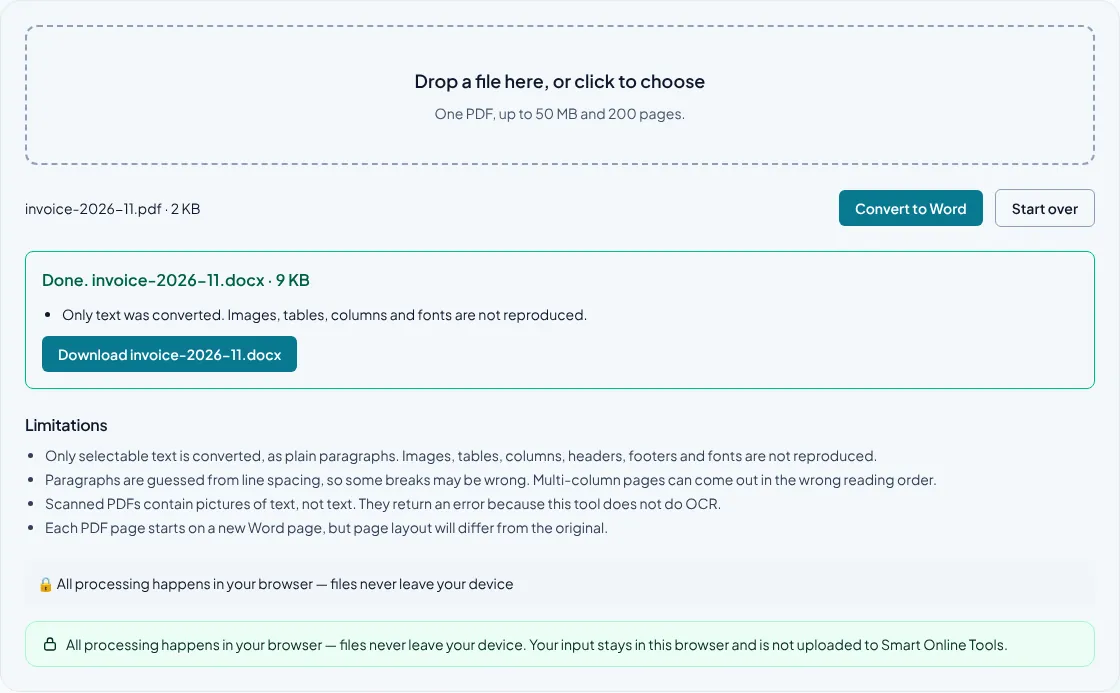
A PDF is designed to keep a page looking consistent, while a Word document is designed for editing and reflow. Turning one into the other is therefore an approximation. This site's PDF to Word tool extracts selectable text; it is useful for some simple documents, but it is not a full-layout converter.
Steps
- Open the PDF in a reader and check whether its text can be selected. If not, it is probably a scan and needs OCR first.
- Use PDF to Word on a copy of a simple text-based PDF.
- Open the DOCX and compare headings, paragraphs, page breaks, numbers, and symbols with the original.
- Edit only after confirming the extracted wording is complete. Keep the original PDF for reference.
Good candidates and difficult layouts
A basic, single-column PDF with selectable paragraphs is the most suitable case. The converter can extract its text and place it in an editable document, with simple paragraph and page-break handling where possible.
Complex documents are harder. Columns, tables, footnotes, sidebars, text boxes, images, custom fonts, and forms may be omitted or appear in a different order. A two-column page may be read across one line at a time or in an order that does not match the visual reading flow. Always compare the converted text with the PDF before using it.
Scans need OCR before text conversion
A scanned PDF stores a photograph of each page. If you cannot select a sentence in a PDF reader, a text extractor cannot see the words in it. Optical character recognition (OCR) is needed to identify text in the image; this site does not currently run OCR.
OCR can misread small print, handwriting, tables, and low-quality scans. Even after OCR, proofread names, dates, decimal points, and amounts against the page image. For a one-off document, an OCR-enabled PDF application may be a better first step.
Choose the right output for the task
If you only need a few paragraphs, Extract Text from PDF may be enough and avoids creating an editable document with a misleading layout. If you need a faithful page image, PDF to Image preserves the visual appearance as a picture, but the resulting images are not editable text.
The conversion runs in your browser. The PDF is not uploaded to this site, but the output should still be treated as an unverified draft. Do not rely on it as the authoritative copy of a legal, financial, or signed document.
Common questions
Can the converter turn a scanned PDF into editable text?
Not by itself. It extracts an existing text layer and does not run OCR. A scanned PDF needs OCR before text extraction can work.
Why did paragraphs or columns move?
PDFs store positioned page content rather than a Word-style reading flow. This tool extracts text and cannot reconstruct every column, table, or text box.
Does the converter upload my document?
No. The conversion runs in your browser. Keep the original and review the DOCX before editing or sharing it.