How to Extract Text from an Image or Scanned PDF (OCR)
Written by Majidul Bari · Updated
Optical character recognition (OCR) reads the letters in a picture and turns them into text you can copy, edit and search. It is the quickest way to reuse a printed letter, a receipt, a screenshot or a scanned contract without retyping it. With a browser-based OCR tool the image never leaves your device, which matters for documents that contain personal details.
Steps
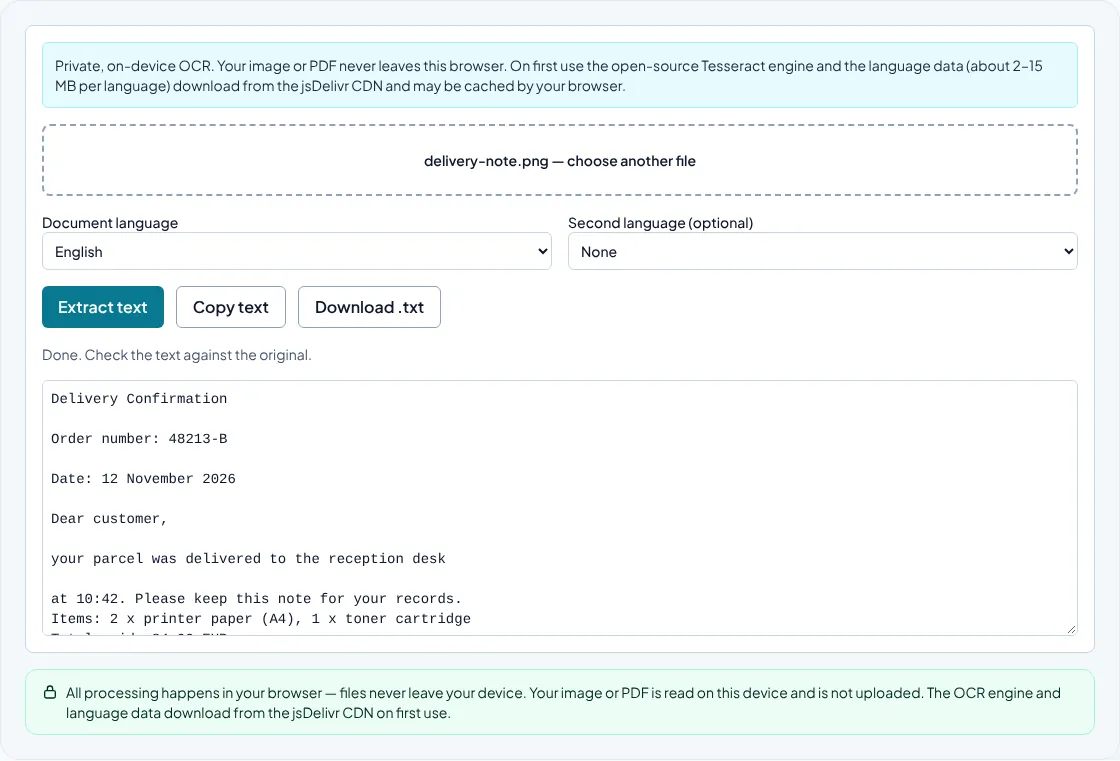
- Open Image to Text (OCR) and choose a photo, screenshot or scanned PDF of up to 20 pages.
- Select the language of the document. If it mixes two languages, add the second one.
- Choose Extract text and wait for the engine and language data to load the first time.
- Proofread the result, then copy it or download it as a .txt file.
First check whether you need OCR at all
Many PDFs already contain real text. If you can select words in your PDF viewer, use Extract Text from PDF instead: it copies the existing text exactly and is much faster. OCR is only needed when the page is an image, such as a scan, a photo or a PDF made from a scanner app.
Screenshots are always images, so OCR is the right choice for text in error messages, slides or social posts that cannot be copied.
How to get an accurate result
Recognition quality depends mostly on the image. Use even light without shadows, hold the camera parallel to the page and fill the frame with the text. Scans at around 300 dpi work well; very small or blurred text is the most common cause of errors.
Choose the correct language. The engine uses a separate trained model for each language, and selecting English for a Czech or Spanish document will lose accents and mis-read words. Crop away busy backgrounds, logos and tables you do not need, because they can be read as random characters.
Handwriting is not supported well. Printed text, typed forms and clear block capitals give the best results.
Proofreading OCR output
Even good OCR makes predictable mistakes: 0 and O, 1 and l, rn read as m, and missing punctuation. Check every name, number, date and amount against the original before you rely on the text.
Multi-column layouts may come out in the wrong order. If that happens, crop the image to one column at a time and run OCR on each part.
Privacy
The tool runs the open-source Tesseract engine inside your browser. The first time you use it, the engine and the language files download from a public CDN; your image or PDF is not uploaded. This makes it suitable for invoices, IDs and letters that you would not want to send to an online OCR service.
Common questions
Can OCR read handwriting?
Not reliably. Tesseract is designed for printed text. Neat block letters sometimes work, but cursive handwriting usually produces errors.
Why is my OCR text full of strange characters?
The image is probably blurred, too small, or the wrong language is selected. Try a sharper photo, crop to the text and pick the right language.
Does OCR keep the layout of the page?
No. It returns plain text with line breaks. Tables, columns and fonts need to be rebuilt in your editor.