JPG, PNG, or WebP? Choosing an Image Format for Your Task
Written by Majidul Bari · Updated
The best image format depends on what the picture contains and where you plan to use it. A photograph, a transparent logo, and a screenshot with small text have different needs. Converting formats changes how pixels are stored; it does not automatically improve the image or guarantee a smaller file.
Steps
- Decide whether the image needs transparency, broad compatibility, or a smaller web-friendly file.
- Choose a format: JPG for many photos, PNG for transparency or sharp graphic edges, and WebP when the destination supports it.
- Convert a copy of the image and compare both file size and appearance at the size people will see it.
- Keep the original for future edits, especially after saving to a lossy format.
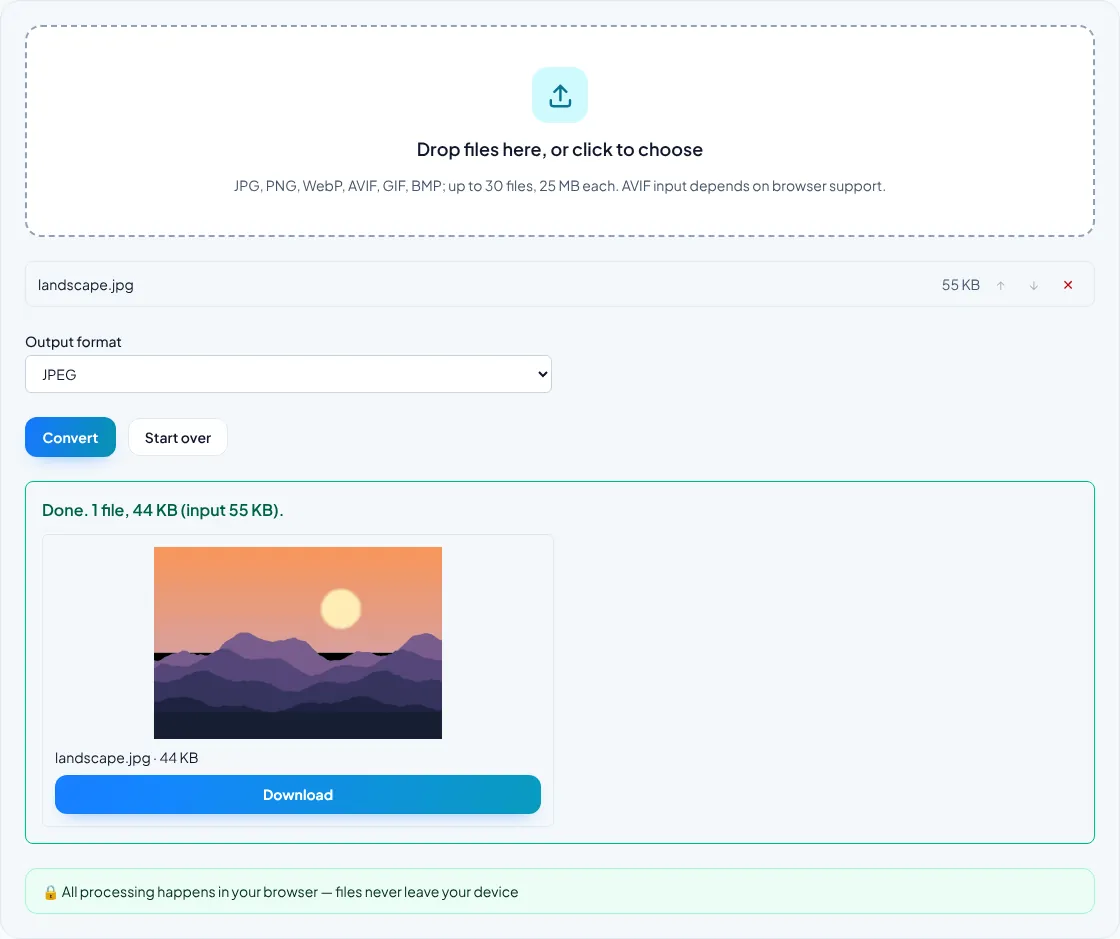
Use JPG for broadly compatible photographs
JPG uses lossy compression, which can reduce photograph size but may soften detail or create visible artefacts when saved at lower quality. It is widely supported by browsers, phones, and office software.
JPG does not preserve transparency. In this site's image conversion tool, transparent pixels become white when the output is JPEG. Avoid converting a logo or cutout with transparent edges to JPG unless a solid white background is acceptable.
Use PNG for transparency and crisp edges
PNG supports transparent pixels and is often a good choice for logos, icons, screenshots, diagrams, and graphics with hard edges or small text. Photographic PNG files can be substantially larger than JPEG or WebP, so it is not automatically the best format for every photo.
PNG compression is lossless, so it does not discard image detail in the way a lossy export can. It may still be possible to reduce file size through resizing or an optimizer, but the result depends on the image.
Consider WebP for supported websites
WebP can store photographic or graphic images and may offer a useful size-quality balance for web delivery. Check that the destination platform, editor, or document workflow accepts WebP; some older software expects JPG or PNG.
Compare the exported file instead of assuming the new format will be smaller. The result depends on the source image and encoder settings. Use Image Resize to reduce unnecessary pixel dimensions and Image Compress to compare quality settings; those operations solve different problems from format conversion.
Check the exported copy
Open the result in the app or website where you will use it. Inspect transparent edges against the intended background, small lettering, gradients, and fine lines. Keep a clean original because converting a lossy image repeatedly can compound quality loss.
For a PDF, PNG and JPEG are typically easier to place than WebP in older workflows. If you convert images to PDF, check page order and readability in the final document.
Common questions
Which format should I use for a transparent logo?
PNG is a safe choice when you need transparency and broad compatibility. JPEG does not support transparency.
Is WebP always smaller than JPG?
No. File size depends on the image and export settings. Convert a copy and compare the actual result.
Does changing JPG to PNG restore lost quality?
No. Conversion cannot recover detail already removed by lossy compression. Keep the original source when possible.